
GitHub Action Tutorial: A Technical Guide to Building CI/CD Pipelines
 By opsmoon
Discover a practical github action tutorial that guides you through building, testing, and deploying GitHub Actions with clear YAML examples.
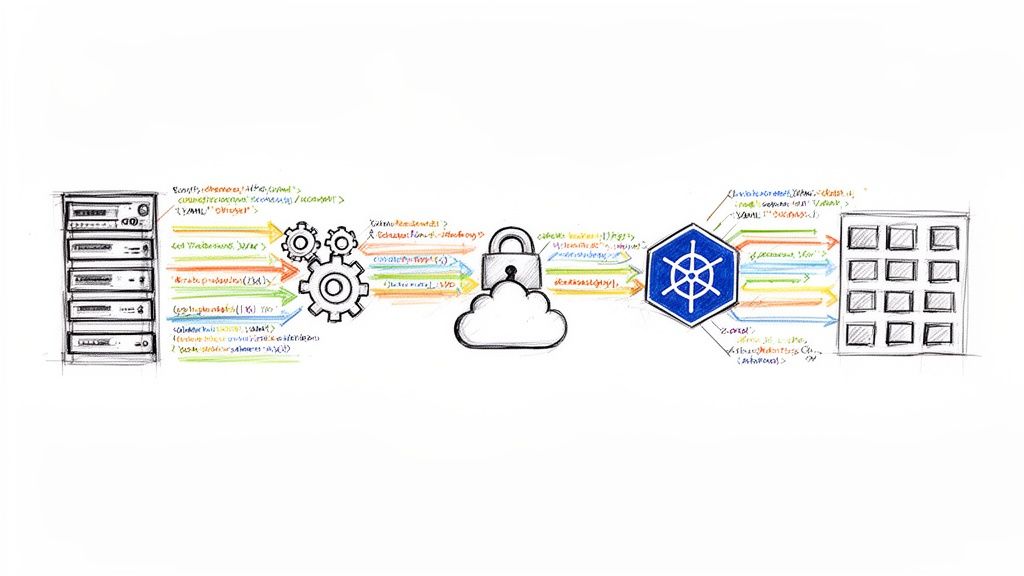
This guide provides a hands-on, technical walkthrough for constructing your first automated workflow with GitHub Actions. We will focus on the core concepts, YAML syntax, and the implementation of a functional CI/CD pipeline, omitting extraneous details.
By the end of this tutorial, you will understand how to leverage the fundamental components—workflows, jobs, steps, and runners—to implement robust automation in your development lifecycle.
Demystifying Your First GitHub Actions Workflow
To effectively use GitHub Actions, you must first understand its fundamental components. The architecture is hierarchical: a workflow contains one or more jobs, each job consists of a sequence of steps, and every job executes on a runner.
Every automated process, from simple linting to complex multi-cloud deployments, is constructed from these core primitives.
A workflow is the top-level process defined by a YAML file located in your repository's .github/workflows directory. It is triggered by specific repository events, such as a push to a branch, the creation of a pull request, or a manual dispatch. This event-driven architecture is the foundation of Continuous Integration.
For a deeper understanding of the principles driving this model, review our technical guide on what is Continuous Integration, a cornerstone of modern DevOps practices.
The Core Concepts You Need to Know
A firm grasp of the workflow structure is essential for writing effective automation. Let's deconstruct the hierarchy and define the function of each component.
This reference table outlines the fundamental building blocks of any workflow.
Core Concepts in GitHub Actions
| Component | Role and Responsibility |
|---|---|
| Workflow | The entire automated process defined in a single YAML file. It is triggered by specified repository events. |
| Job | A set of steps that execute on the same runner. Jobs can run in parallel by default or be configured to run sequentially using the needs directive. |
| Step | An individual task within a job. It can be a shell command executed with run or a pre-packaged, reusable Action invoked with uses. |
| Runner | The server instance that executes your jobs. GitHub provides hosted runners (e.g., ubuntu-latest, windows-latest), or you can configure self-hosted runners on your own infrastructure. |
With these concepts defined, the logical flow of a complete automation pipeline becomes clear. Each component has a distinct role in the execution of the defined process.
Your First Practical Workflow: Hello World
Let's transition from theory to practice by creating a "Hello, World!" workflow to observe these concepts in a live execution.
First, create the required directory structure. In your repository's root, create a .github directory, and within it, a workflows directory.
Inside .github/workflows/, create a new file named hello-world.yml.
Paste the following YAML configuration into the file:
name: A Simple Hello World Workflow

on:
  push:
    branches: [ "main" ]
  pull_request:
    branches: [ "main" ]
  workflow_dispatch:

jobs:
  say-hello:
    runs-on: ubuntu-latest
    steps:
      - name: Greet the World
        run: echo "Hello, World! I am running my first GitHub Action!"
      - name: Greet a Specific Person
        run: echo "Hello, OpsMoon user!"
Let's analyze this configuration. The workflow is triggered on a push or pull_request event targeting the main branch. The workflow_dispatch trigger enables manual execution from the GitHub Actions UI.
It defines a single job, say-hello, configured to execute on the latest GitHub-hosted Ubuntu runner (ubuntu-latest). This job contains two sequential steps, each using the run keyword to execute an echo shell command.
Commit this file and push it to your main branch. Navigate to the "Actions" tab in your GitHub repository to observe the workflow's execution log. You have now successfully configured and executed your first piece of automation.
Building a Practical CI Pipeline from Scratch
While a "Hello, World!" example demonstrates the basics, real-world value comes from building functional pipelines. We will now construct a standard Continuous Integration (CI) pipeline for a Node.js application. The objective is to automatically build and test the codebase whenever a pull request is opened, providing immediate feedback on code changes.
This process illustrates the core automation loop of GitHub Actions, where a single repository event triggers a cascade of jobs and steps.
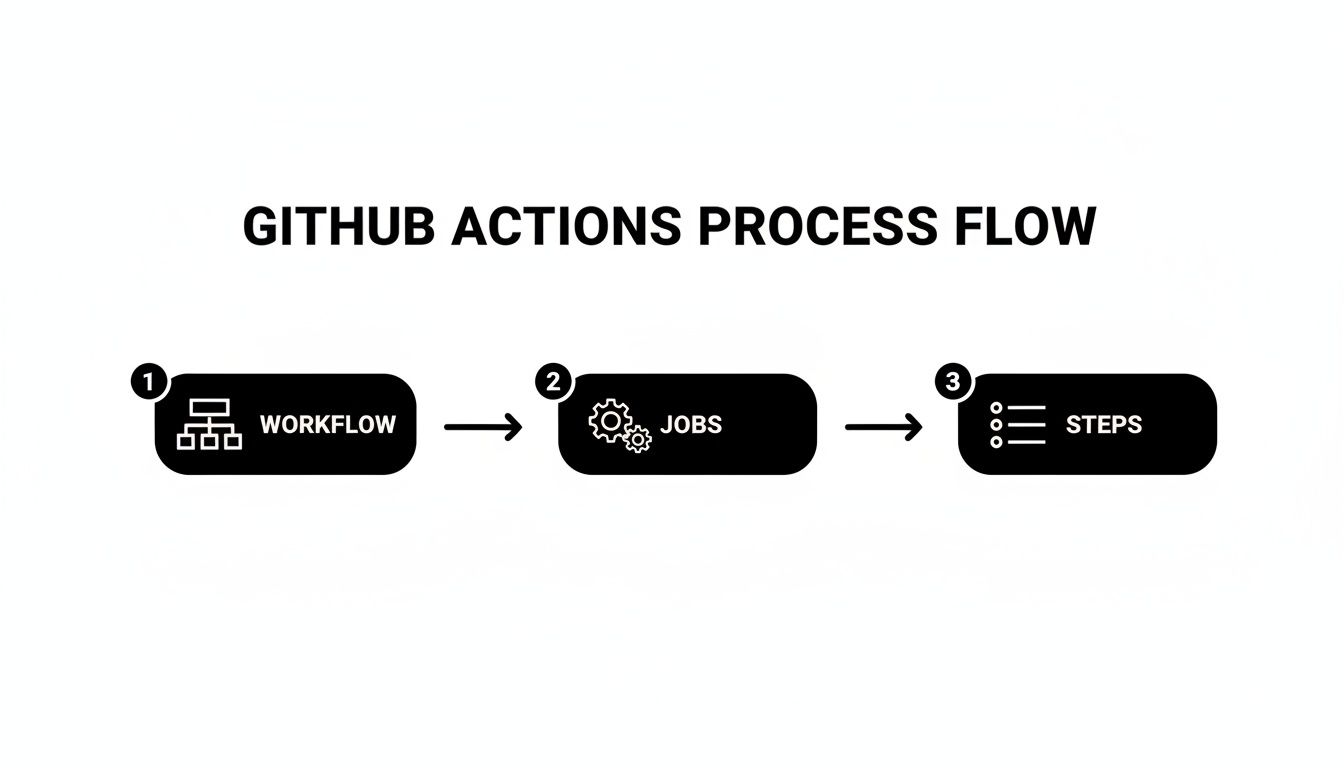
As shown, the workflow acts as the container for jobs, which are composed of sequential steps executed on a runner. This hierarchical structure is both straightforward and powerful.
Crafting the Node.js CI Workflow
First, create a new YAML file at .github/workflows/node-ci.yml in your repository. This file will define the entire CI process.
Here is the complete workflow configuration. We will dissect each section immediately following the code block.
name: Node.js CI

on:
  pull_request:
    branches: [ "main" ]

jobs:
  build-and-test:
    runs-on: ubuntu-latest
    strategy:
      matrix:
        node-version: [18.x, 20.x, 22.x]

    steps:
      - name: Checkout repository code
        uses: actions/checkout@v4

      - name: Use Node.js ${{ matrix.node-version }}
        uses: actions/setup-node@v4
        with:
          node-version: ${{ matrix.node-version }}
          cache: 'npm'

      - name: Install dependencies
        run: npm ci

      - name: Run tests
        run: npm test
The trigger is defined in the on block, configured to execute on any pull_request targeting the main branch. This is a standard CI practice to validate code changes before they are merged.
Breaking Down the Job Configuration
The single job, build-and-test, is configured to run on an ubuntu-latest runner—a fresh, GitHub-hosted virtual machine equipped with common development tools.
The core of this job's efficiency lies in the
strategyblock. It defines a buildmatrix, instructing GitHub Actions to execute the entire job multiple times, once for each specified Node.js version. This is a highly efficient method for testing compatibility across multiple environments without code duplication.
The job proceeds through a series of steps:
- Checkout repository code: This step utilizes
actions/checkout@v4, a pre-built Action that clones a copy of your repository's code onto the runner. - Use Node.js: The
actions/setup-node@v4action installs the Node.js version specified by the matrix variable. Thewith: cache: 'npm'directive is a critical performance optimization. It caches thenode_modulesdirectory, allowing subsequent runs to bypass the time-consuming dependency installation process, significantly reducing pipeline execution time. - Install dependencies: We use
npm ciinstead ofnpm install. For CI environments,ciis faster and more reliable as it installs dependencies strictly from thepackage-lock.jsonfile, ensuring reproducible builds. - Run tests: The
npm testcommand executes the test suite defined in yourpackage.jsonfile.
The scale of GitHub Actions' infrastructure is substantial. To handle accelerating demand, GitHub re-architected its backend, and by August 2025, the system was processing 71 million jobs daily, up from 23 million in early 2024. This overhaul was critical for maintaining performance and reliability at scale.
To further enhance quality assurance, consider integrating additional automated testing tools. You can explore a range of options in this guide to the Top 12 Automated Website Testing Tools.
After committing this file, open a pull request to see the action execute. A green checkmark indicates that all tests passed across all Node.js versions, providing a clear signal that the code is safe to merge.
Managing Secrets and Environments for Secure Deployments
Automating builds and tests is foundational, but the ultimate goal is often automated deployment. This introduces a security challenge: deployments require sensitive credentials like API keys, cloud provider tokens, and database passwords. Committing these secrets directly into your repository is a severe security vulnerability.
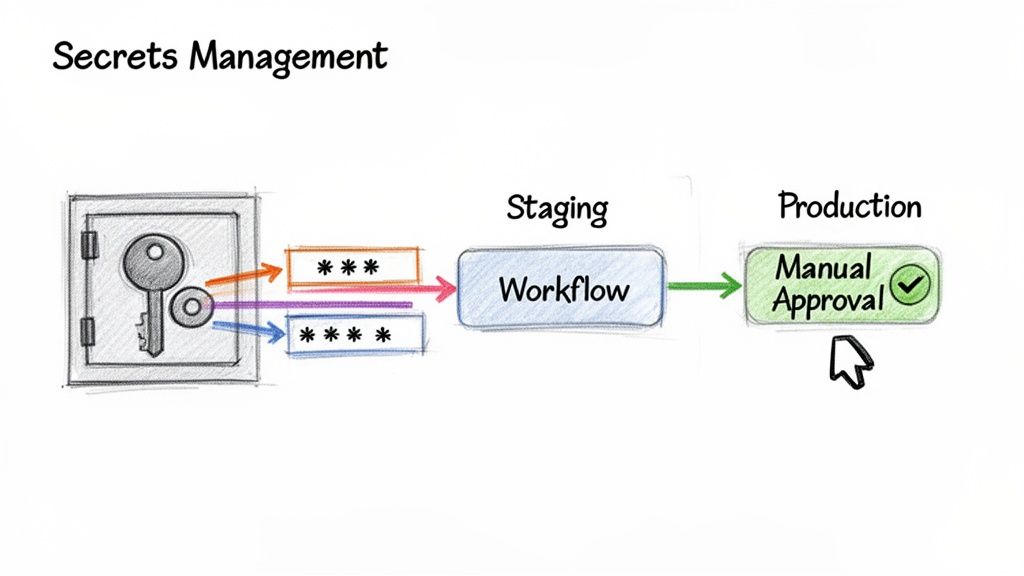
GitHub's secrets management system is a critical feature for secure automation. It provides a mechanism for storing sensitive data as encrypted secrets, which can be accessed by workflows without being exposed in logs or source code.
Creating and Using Repository Secrets
The primary tool for this is repository secrets. These are encrypted environment variables scoped to a specific repository.
To create a secret, navigate to your repository's Settings > Secrets and variables > Actions. Here, you can add new repository secrets. Once a secret is saved, its value is permanently masked and cannot be viewed again; it can only be updated or deleted.
To use a secret in a workflow, you reference it through the secrets context. GitHub injects the value securely at runtime.
jobs:
  deploy:
    runs-on: ubuntu-latest
    steps:
      - name: Deploy to Cloud Provider
        run: echo "Deploying with API key..."
        env:
          API_KEY: ${{ secrets.YOUR_API_KEY }}
In this example, YOUR_API_KEY is the name of the secret created in the settings. The expression ${{ secrets.YOUR_API_KEY }} injects the secret's value into the API_KEY environment variable for that step. GitHub automatically redacts this secret's value in logs, replacing it with *** to prevent accidental exposure.
For a comprehensive approach to data protection, it is beneficial to study established secrets management best practices that apply across your entire technology stack.
Structuring Workflows with Environments
For managing deployments to distinct environments like staging and production, GitHub Environments provide a formal mechanism for applying protection rules and environment-specific secrets.
Create environments from your repository's Settings > Environments page. Here, you can configure crucial deployment guardrails:
- Required reviewers: Mandate manual approval from one or more specified users or teams before a deployment to this environment can proceed.
- Wait timer: Configure a delay before a job targeting the environment begins, providing a window to cancel a problematic deployment.
- Deployment branches: Restrict deployments to an environment to originate only from specific branches (e.g., only the
mainbranch can deploy toproduction).
Once an environment is configured, reference it in your workflow job:
jobs:
  deploy-to-prod:
    runs-on: ubuntu-latest
    environment:
      name: production
      url: https://your-app-url.com
    steps:
      - name: Deploy to Production
        run: ./deploy.sh
        env:
          AWS_ACCESS_KEY_ID: ${{ secrets.AWS_ACCESS_KEY_ID }}
Adding the environment key links this job to the configured protection rules. If the production environment requires a review, the workflow will pause at this job, awaiting approval from an authorized user in the GitHub UI. This simple YAML addition introduces a significant layer of control and safety to your deployment process.
Advanced Deployment Strategies for Cloud Environments
With a robust CI pipeline and secure secrets management in place, the next step is automating deployments. Continuous Deployment (CD) enables faster feature delivery with reduced manual intervention. This section focuses on implementing production-grade deployment patterns for major cloud providers.
We will move beyond simple shell scripts to integrate Infrastructure as Code (IaC) tools like Terraform directly into the pipeline. This approach allows you to provision, modify, and version your cloud infrastructure with the same rigor as your application code.
Integrating Terraform for Automated Infrastructure
Manual management of cloud resources is inefficient, error-prone, and not scalable. By integrating Terraform into GitHub Actions, you can automate the entire infrastructure lifecycle, from provisioning an S3 bucket to deploying a complex Kubernetes cluster.
The following workflow demonstrates a common pattern: running terraform plan on pull requests for review and terraform apply upon merging to the main branch. This example assumes AWS credentials (AWS_ACCESS_KEY_ID and AWS_SECRET_ACCESS_KEY) are stored as repository secrets.
name: Deploy Infrastructure with Terraform

on:
  push:
    branches:
      - main
  pull_request:

jobs:
  terraform:
    name: 'Terraform IaC'
    runs-on: ubuntu-latest

    steps:
    - name: Checkout
      uses: actions/checkout@v4

    - name: Setup Terraform
      uses: hashicorp/setup-terraform@v3
      with:
        terraform_version: 1.8.0

    - name: Terraform Format Check
      id: fmt
      run: terraform fmt -check

    - name: Terraform Init
      id: init
      run: terraform init
      env:
        AWS_ACCESS_KEY_ID: ${{ secrets.AWS_ACCESS_KEY_ID }}
        AWS_SECRET_ACCESS_KEY: ${{ secrets.AWS_SECRET_ACCESS_KEY }}

    - name: Terraform Plan
      id: plan
      if: github.event_name == 'pull_request'
      run: terraform plan -no-color
      continue-on-error: true

    - name: Terraform Apply
      if: github.ref == 'refs/heads/main' && github.event_name == 'push'
      run: terraform apply -auto-approve
      env:
        AWS_ACCESS_KEY_ID: ${{ secrets.AWS_ACCESS_KEY_ID }}
        AWS_SECRET_ACCESS_KEY: ${{ secrets.AWS_SECRET_ACCESS_KEY }}
This workflow uses conditional execution. On a pull request, it generates a terraform plan, providing a preview of the impending changes. When the pull request is merged to main, the push event triggers the workflow again, this time executing terraform apply to implement the changes.
This automation ensures your infrastructure state remains synchronized with your codebase. It also enables more advanced release patterns, such as blue-green or canary deployments. For further reading on this topic, consult our guide to zero-downtime deployment strategies.
Leveraging Self-Hosted Runners for Specialized Workloads
While GitHub-hosted runners are convenient and require no maintenance, they are not suitable for all use cases. Self-hosted runners provide a solution for jobs requiring more control, specialized hardware, or enhanced security. They allow you to execute jobs on your own infrastructure, whether on-premises servers or VMs in a private cloud.
The adoption of GitHub Actions has grown significantly since its 2018 launch. In 2023, public projects consumed 11.5 billion GitHub Actions minutes, a 35% increase year-over-year. The platform now processes over 71 million jobs daily, a testament to its scale. More details on this growth are available on the official GitHub blog.
While GitHub's runner fleet handles the majority of this load, self-hosted runners are essential for specialized requirements.
Self-hosted runners offer complete control over the execution environment, which is necessary for jobs requiring GPU access, ARM architecture, or direct connectivity to on-premises systems.
Consider a self-hosted runner for the following scenarios:
- Specialized Hardware: Your build process requires a GPU for machine learning model training, or you are compiling for a non-x86 architecture like ARM.
- Strict Security Compliance: Corporate security policies mandate that all CI/CD processes execute within your private network perimeter.
- Access to Private Resources: Your workflow must interact with a firewalled database, internal artifact repository, or other non-public services.
Setting up a self-hosted runner involves installing an agent on your machine and registering it with your repository or organization. This initial setup provides complete environmental control.
GitHub-Hosted vs Self-Hosted Runners
The choice between runner types is a trade-off between convenience and control. This table compares key features to aid in your decision-making.
| Feature | GitHub-Hosted Runners | Self-Hosted Runners |
|---|---|---|
| Maintenance | Fully managed by GitHub; no patching required. | You are responsible for OS, software, and security updates. |
| Environment | Pre-configured with a wide range of common software. | Fully customizable; install any required tool or hardware. |
| Cost | Billed per minute of execution time. | You incur costs for your own infrastructure (servers, cloud VMs). |
| Security | Each job runs in a fresh, isolated VM. | Runs on your hardware, enabling complete network-level isolation. |
To use a self-hosted runner, simply change the runs-on key in your workflow to a label assigned during the runner's setup (e.g., self-hosted, or a more specific label like gpu-runner-v1). This one-line change directs the job to your infrastructure, unlocking advanced capabilities for your deployment pipelines.
Optimizing Workflows for Cost and Performance
Active workflows incur costs, both in compute charges and developer wait time. Optimizing pipelines for speed and efficiency is a critical practice for managing budgets and maintaining development velocity.
GitHub is adjusting the economics of Actions. Effective January 1, 2026, a 40% price reduction for hosted runners will be implemented, but it will be paired with a new $0.002 per-minute "cloud platform charge" for all workflows, including those on self-hosted runners. While GitHub estimates that 96% of customers will not see a bill increase, this change underscores the importance of efficient workflows. You can review the specifics of the 2026 pricing changes for GitHub Actions for more details.
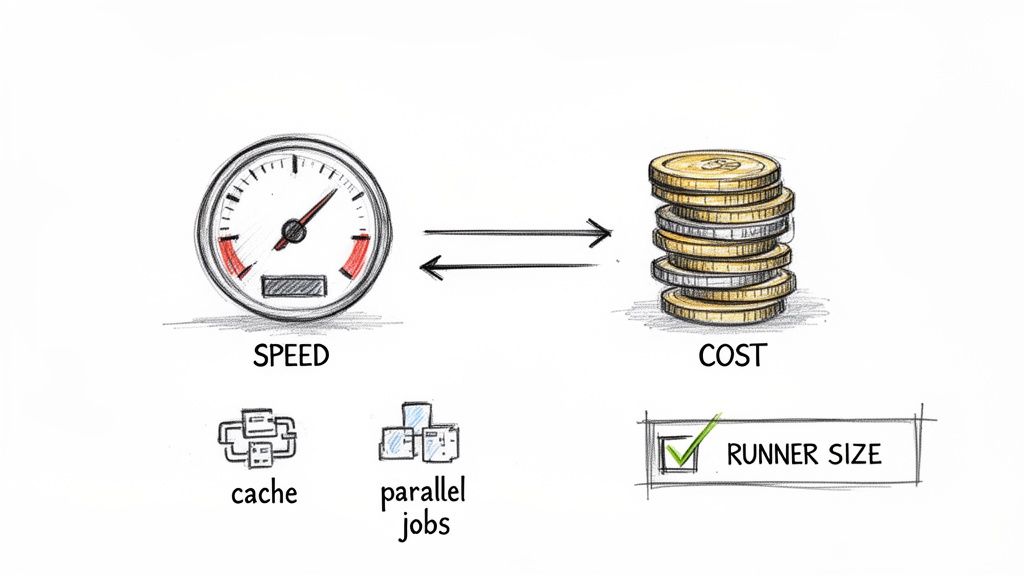
Effective optimization focuses on three key areas: caching, job parallelization, and runner selection.
Implement Smart Caching Strategies
Intelligent caching is the most effective method for reducing job runtime. Re-downloading dependencies or rebuilding artifacts in every run is a significant waste of time and resources. The actions/cache action addresses this.
By caching directories like node_modules, ~/.m2 (Maven), or ~/.gradle (Gradle), you can reduce build times significantly.
A well-designed cache key is crucial. A key that is too broad may result in using stale dependencies, while a key that is too specific will lead to frequent cache misses. A robust pattern is to combine the runner's OS, a static identifier, and a hash of the dependency lock file.
Here is a standard caching implementation for a Node.js project:
- name: Cache node modules
  uses: actions/cache@v4
  with:
    path: ~/.npm
    key: ${{ runner.os }}-node-${{ hashFiles('**/package-lock.json') }}
    restore-keys: |
      ${{ runner.os }}-node-
This configuration invalidates the cache only when package-lock.json is modified, which is precisely when dependencies need to be updated.
Parallelize Jobs for Maximum Throughput
If a workflow contains independent tasks such as linting, unit testing, and integration testing, executing them sequentially creates a bottleneck. By defining them as separate jobs, they can run in parallel, drastically reducing the total workflow duration.
The total runtime becomes the duration of the longest-running job, not the sum of all jobs.
By default, all jobs in a workflow without explicit dependencies run in parallel. The
needskeyword is used to enforce a sequential execution order, such as making a deployment job dependent on a successful build job.
Consider structuring a CI pipeline with parallel jobs:
- Linting Job: Performs static code analysis.
- Unit Test Job: Executes fast, isolated tests.
- Integration Test Job: A longer-running job that may require external services like a database.
This structure provides faster feedback; a linting failure that occurs in 30 seconds is not delayed by a 20-minute test suite.
Choose the Right Runner Size
GitHub offers hosted runners with varying vCPU counts and memory. Selecting the appropriate runner size is a balance between performance and cost.
For lightweight tasks like linting, a standard 2-core runner is cost-effective. For computationally intensive tasks—such as compiling large C++ projects, building complex Docker images, or running extensive end-to-end test suites—a larger runner can provide significant performance gains.
A more expensive runner can paradoxically reduce total cost. While the per-minute rate is higher, if the job completes substantially faster, the overall cost may be lower. For example, a job that takes 30 minutes on a 2-core runner might finish in 8 minutes on an 8-core machine, reducing both cost and developer wait time. Profile your critical jobs to identify the optimal runner size.
Common GitHub Actions Questions Answered
This section addresses frequently asked questions from engineers who are new to GitHub Actions, focusing on core concepts that are key to building maintainable and effective automation.
Can I Use GitHub Actions For More Than Just CI/CD?
Yes. While CI/CD is a primary use case, GitHub Actions is a general-purpose, event-driven automation platform. Any event within a GitHub repository can trigger a workflow.
Teams have implemented GitHub Actions for a variety of automation tasks beyond CI/CD:
- Automated Issue Triage: A workflow can automatically apply a
needs-triagelabel to new bug reports and assign them to an on-call engineer based on a defined schedule. - Scheduled Housekeeping: Using
on: schedule, you can run cron jobs to perform tasks like nightly database cleanup, generating weekly performance reports for Slack, or archiving stale feature branches. - Living Documentation: Configure a workflow to automatically build and deploy a static documentation site (e.g., MkDocs, Docusaurus) on every merge to the
mainbranch. - Custom Notifications: Implement workflows to post targeted messages to specific Discord or Slack channels when a high-priority pull request is opened or a production deployment completes successfully.
How Do I Troubleshoot a Failing Workflow?
Start by examining the logs for the specific failing job. GitHub Actions provides detailed, step-by-step output that typically highlights the command that failed and its error message.
For more complex issues, enable debug logging by creating a repository secret named ACTIONS_RUNNER_DEBUG with the value true. The subsequent workflow run will produce verbose logs, detailing the runner's operations.
For interactive debugging, the tmate/tmate-action is an invaluable tool. Adding this action as a step in your workflow establishes a temporary SSH session directly into the runner. This allows you to inspect the filesystem, check environment variables, and execute commands interactively to diagnose the problem.
What Is The Difference Between An Action And A Workflow?
The distinction lies in their place in the hierarchy.
An action is a reusable, self-contained unit of code that performs a specific task. A workflow is the high-level process definition, written in YAML, that orchestrates multiple steps (which can be actions or shell commands) into jobs to accomplish a goal.
An analogy is a recipe. The actions are pre-packaged components like actions/checkout (to fetch code) or actions/setup-node (to install Node.js). The workflow is the complete recipe that specifies the sequence of jobs and steps required to produce the final result. A workflow is composed of jobs, jobs are composed of steps, and steps can either execute a shell command or use an action.
Applying principles from best practices for clear software documentation to your workflow files can greatly improve their maintainability.
When Should I Use A Self-Hosted Runner?
GitHub-hosted runners are sufficient for the majority of use cases. A self-hosted runner becomes necessary when you encounter specific limitations.
The transition to a self-hosted runner is indicated in these scenarios:
- Specialized Hardware: Standard runners lack GPUs. For ML model training or complex simulations, you must provide your own hardware. The same applies to building for non-x86 architectures like ARM.
- Strict Security and Compliance: In regulated industries like finance or healthcare, the build process must often occur within a private network. A self-hosted runner ensures your source code and build artifacts never leave your network perimeter.
- Accessing Private Resources: If your workflow needs to connect to a database, artifact repository, or other service behind a corporate firewall, a self-hosted runner located within that network is the most secure solution.
Self-hosted runners provide complete control over the operating system, installed software, and network configuration, making them essential for complex or highly regulated environments.
At OpsMoon, we specialize in designing and implementing robust CI/CD pipelines that accelerate your development cycle. Our expert DevOps engineers can help you build, optimize, and scale your automation workflows with GitHub Actions, ensuring your team can ship software faster and more reliably. Find out how we can help at https://opsmoon.com.